Can You Print WhatsApp or Facebook Photos on Canvas?
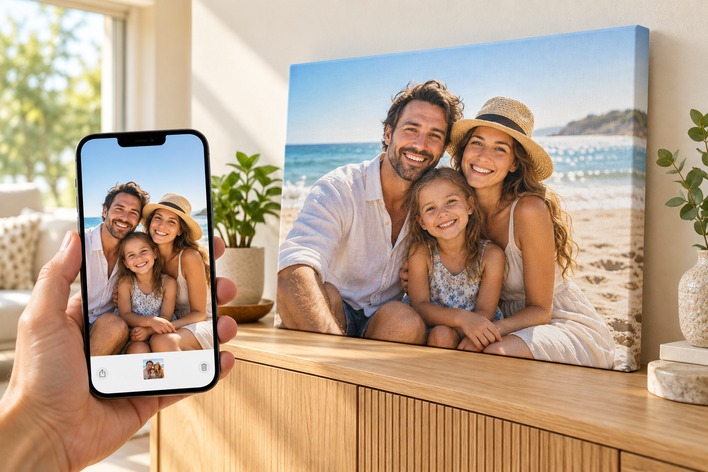
That family photo in your WhatsApp group or an old Facebook album might be the one you want on your wall. But will it look as good on canvas as it does on your phone?
Yes, you can print WhatsApp or Facebook photos on canvas, as long as the file has enough detail for your print size. The original photo from the camera always gives the best result. If you only have the shared copy, check its pixel size, sharpness and crop before you order.
A few quick checks help you avoid blurry faces when ordering canvas prints.
Why Do WhatsApp and Facebook Photos Look Blurry in Print?
WhatsApp and Facebook shrink photos to save data. A photo that looks sharp on a small phone screen can look soft once it fills a large canvas.
Compression makes the file smaller and strips out fine detail. Resizing cuts the number of pixels. Both become obvious when you enlarge the photo.
Zoom in on hair, eyes, text and clothing patterns. Smudged textures or blocky edges mean the file will struggle at a large size.
Always judge the actual saved file, not the preview in your chat.
How Do You Get a Full-Quality Photo from WhatsApp?
Ask the sender for the original photo. The copy in their camera roll has far more detail than the one in your chat.
They can send it without losing quality in one of these ways:
• Send it as a Document. In WhatsApp, tap the attach icon and choose Document, not Gallery. WhatsApp then sends the original file with no compression.
• Send it in HD. When sharing a photo, tap the HD option before sending. You can also set media upload quality to the highest option under Storage and data in WhatsApp settings.
• Use a cloud link. Google Drive, iCloud or Dropbox links keep the full file size.
If the chat copy is all you have:
1. Open the photo and let it fully download.
2. Save the image itself. Never use a screenshot.
3. Check its pixel size in your photo info or file properties.
4. Zoom in on faces at full size.
5. Choose a smaller print size if the photo looks soft.
Keep an untouched copy before you make any edits.
How Do You Get the Best Copy of a Facebook Photo?
Open the single photo and use the Download or Save option. Never take a screenshot. A screenshot only captures your screen resolution and can include buttons and text.
If a friend posted the photo, ask them for the original camera file. For your own photos, check old phones, computer folders and cloud backups before you use the Facebook copy.
Downloading won't bring back detail Facebook already removed. If you find more than one version, compare the pixel size and sharpness, then use the clearest one.
What Photo Resolution Do You Need for Canvas Prints?
For a sharp canvas print, aim for at least 60 pixels per cm of print size, which is about 150 PPI. For a wall print viewed from a normal distance, 40 to 60 pixels per cm (about 100 to 150 PPI) still looks good. Below 40 pixels per cm, choose a smaller size.
To check your photo, divide its long edge in pixels by the long edge of the print in cm. PPI (pixels per inch) works the same way in inches. Adobe explains this in its printed image resolution guide.
Here is how one typical shared photo, about 1,600 pixels on its long edge, compares with a phone original:
|
Photo long edge |
Print size |
Pixels per cm |
Approx. PPI |
Result |
|
1,600 px (shared copy) |
20 x 30 cm |
53 |
135 |
Good on the wall |
|
1,600 px (shared copy) |
30 x 45 cm |
36 |
90 |
Soft up close |
|
1,600 px (shared copy) |
40 x 60 cm |
27 |
68 |
Choose a smaller size |
|
4,000 px (phone original) |
40 x 60 cm |
67 |
169 |
Sharp |
These figures assume no cropping. A sharp, well-lit photo holds up better than a dark or noisy one at the same size.
Can You Fix a Low-Resolution Photo Before Printing?
Small edits can improve how a photo looks, but they can't bring back detail that is gone.
Brightness, contrast and colour tweaks can help a dark photo. Light sharpening makes edges crisper, but too much creates harsh outlines.
Changing a file's setting to "300 DPI" adds no real detail. Resizing software can add pixels, but the result still depends on the source photo.
For a low-resolution photo, choose a smaller canvas, or use it as one of several small photos in a collage. If you use an AI enhancement tool, check faces closely. AI can change how someone looks.
How Does Cropping Affect Your Canvas Print?
Cropping removes pixels and can cut people out of the photo. Check both before you choose a size.
A wide group shot may lose people at the edges if you crop it square. A portrait may need space above the head or below the shoulders.
When you create photo canvas prints, check the front view and the wrapped edges in the preview. Keep faces and key details away from the outer border.
A small section cut from a large photo may not have enough pixels left for a big print. Check the size of the final crop, not the full photo.
Canvas, Metal or Acrylic: Does the Material Matter?
A better surface won't fix a small file. Check the photo first, then pick the finish you like.
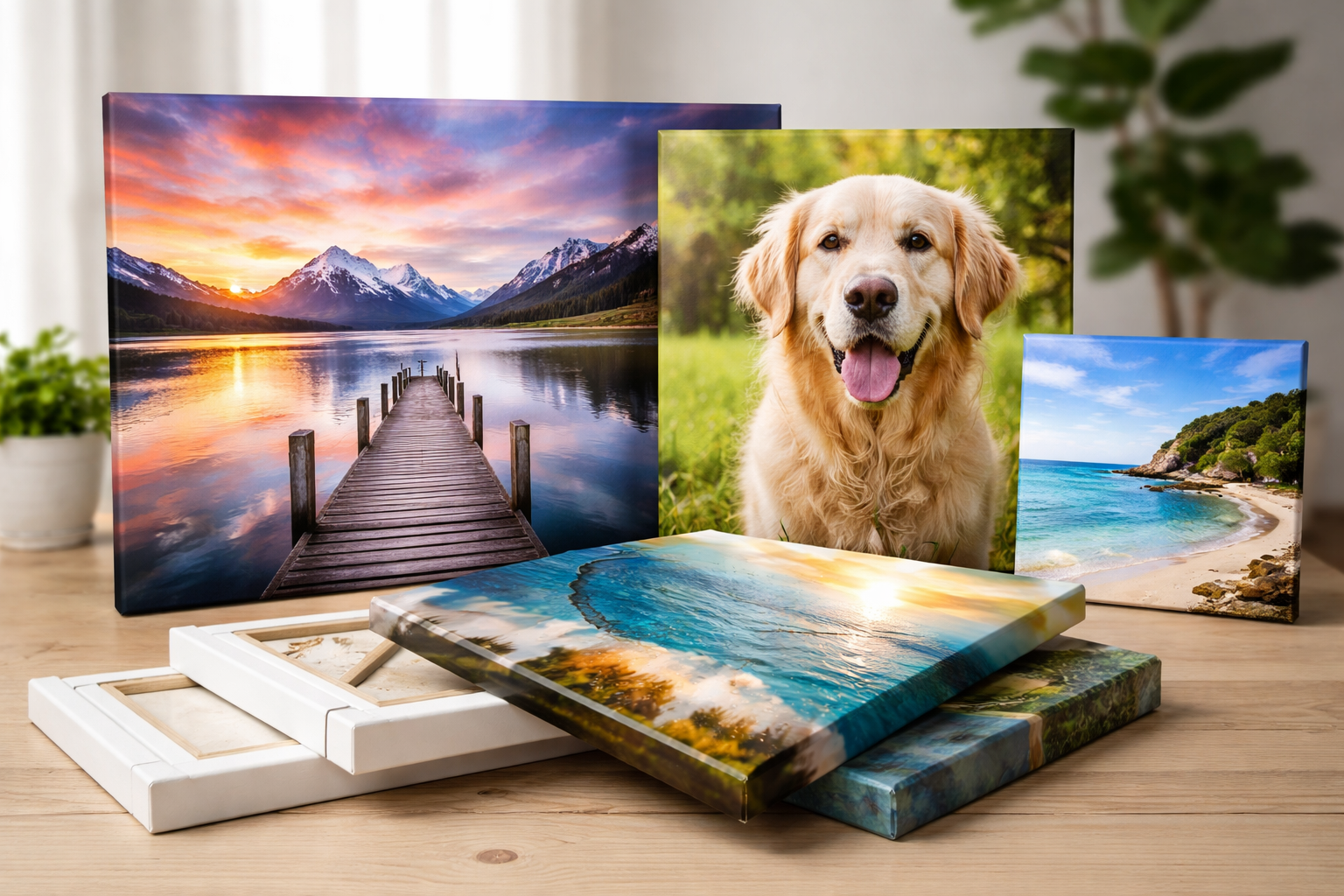
Canvas has a soft texture that suits family portraits. Metal photo prints use a coated aluminium surface, and acrylic photo prints give a glossy look that suits bright, colourful photos. The same resolution checks apply to all three.
Frequently Asked Questions
Why do WhatsApp photos look blurry when printed?
WhatsApp compresses photos to save data, which removes fine detail and cuts the pixel count. The photo looks fine on a phone screen but soft when enlarged on canvas. Ask the sender to share the original as a Document or in HD for the best print.
How do I send a photo on WhatsApp without losing quality?
Attach the photo using the Document option instead of Gallery. WhatsApp then sends the original file with no compression. You can also tap HD before sending, or share a Google Drive, iCloud or Dropbox link to the full file.
What is the largest canvas size for a Facebook photo?
Divide the long edge of the photo in pixels by 60. The answer is roughly the largest sharp print in cm. For example, a 2,000-pixel photo prints sharply up to about 33 cm on its long edge. For a wall print viewed from a distance, you can go a bit larger.
Can I print Instagram or Messenger photos on canvas?
Yes. The same rules apply. Instagram and Messenger also compress photos, so the original file from the camera always prints best. If you only have the shared copy, check its pixel size and choose a canvas size to match.
Can a blurry photo be fixed before printing?
Light edits to brightness, contrast and sharpness can help a little, but they can't restore lost detail. The best fix is a smaller print size or a collage layout. If you try AI enhancement, check faces closely before you order.
Checklist: Is Your Photo Ready for Canvas?
Run through this list before you order:
• Use the original photo, or the best copy you can find.
• Zoom in on faces and check for blur or blocky edges.
• Match your print size to the cropped photo, aiming for 60 pixels per cm.
• Check the wrapped edges and final layout in the preview.
• Check the delivery estimate for your New Zealand address.
Your favourite shared photo doesn't need to stay buried in a chat or an old album. Find the clearest copy, pick the right size and check the preview. Then turn that memory into a canvas print with CanvasChamp NZ.